Explore placement before the studio
Preview a tattoo on your body before committing
Try a design on your own photo or a body template, then adjust its position, size and angle. The preview helps you explain your idea to a tattoo artist; it cannot show exactly how the finished tattoo will look or heal.
Start Free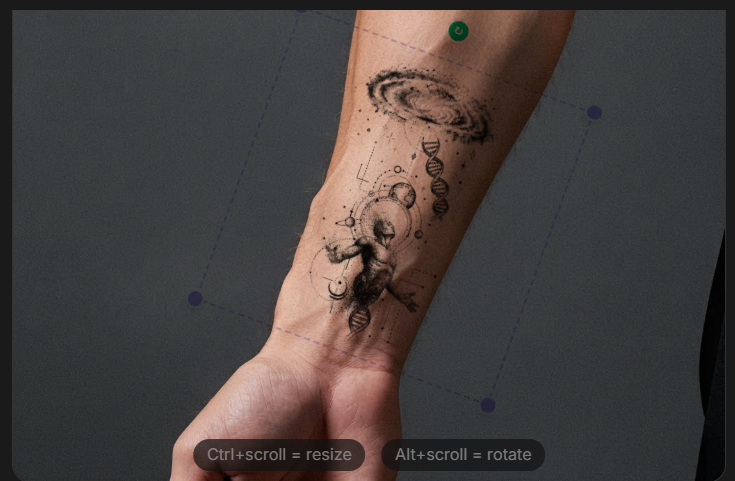
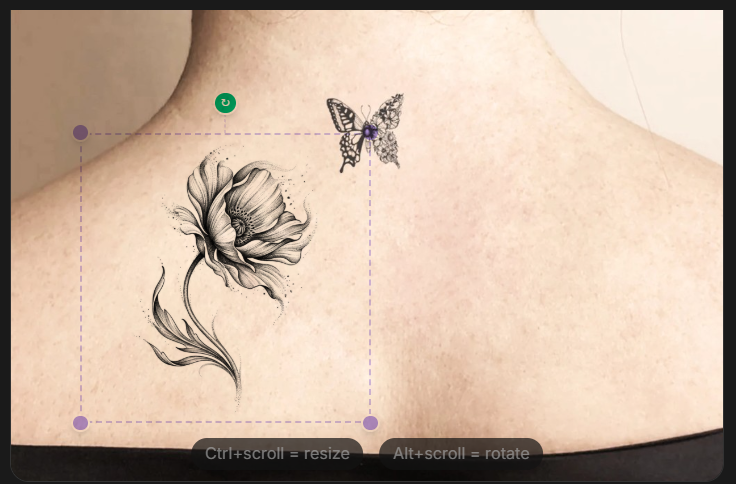
How to try on a tattoo
- 1Generate a design (or select one from the gallery).
- 2Open the 'Try On Body' panel on the right.
- 3Upload your own photo or choose a body template.
- 4Position, resize and rotate the tattoo on the photo.
- 5Click 'Generate Try-On' — the AI will blend the design realistically.
AI Try-On with a photo
Start with a design, upload a clear photo of the body area or choose a template, and position the artwork. The AI creates a blended preview for discussing placement.
Interactive 3D preview
On desktop, you can also inspect a design on a rotatable 3D body model without uploading your own photo. This helps explore position and scale from different angles.
What a preview cannot promise
Lighting, skin texture, body movement and the artist's technique affect the real result. AI previews can contain artifacts. Ask your tattoo artist to confirm size, placement and any design changes before tattooing.
Common questions
Can I use my own body photo?
Yes. AI Try-On accepts your photo, or you can use a body template. Choose a well-lit photo with the target area clearly visible.
Is the preview the final tattoo design?
No. It is a visual planning aid. The tattoo artist should adapt the design and placement to your body and technique.